
First login & dashboard
The first thing you'll see after signing in is your Dashboard — a one-page overview of your church.
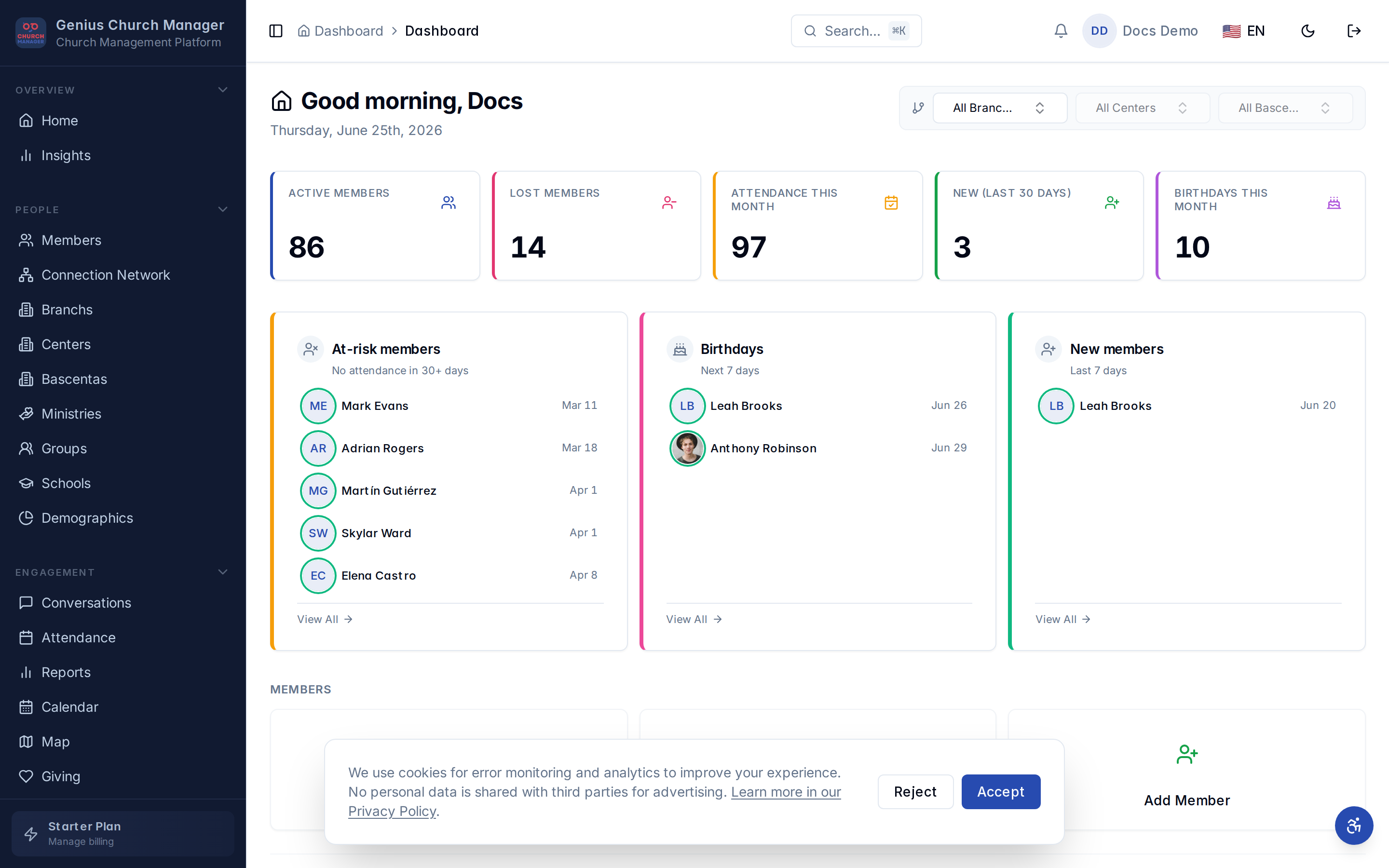
The four areas
1. KPI tiles (top row)
At-a-glance numbers for the things you check daily:
- Active members — total members in your church, excluding ones marked lost.
- Lost members — members flagged as no longer attending. Tap to see the backsliding members list.
- Recent signups — new members added in the last 30 days.
- Birthdays this week — heads-up for pastoral care.
2. Charts (middle)
- Member growth — your active member count over the last 24 weeks. A flat line is worth investigating.
- Attendance trends — average attendance per service, smoothed over the same period.
- Active vs lost — donut showing the split. Healthy churches sit around 85/15.
3. Module tiles (bottom)
Big clickable cards for the modules you have permission to use:
- Members
- Attendance
- Giving
- Messaging
- Workflows
- Reports
What you see depends on your role and the modules your church enabled. Every current plan includes PowerSync offline mode and advanced workflows; the plan controls member and storage capacity.
4. Sidebar (left)
Same modules as the dashboard tiles, plus settings. The sidebar is always available — click your church name at the top to switch between churches if you have access to more than one.
Switching to Spanish
Click the language switcher in the top-right corner. Your choice is saved in your browser, so you'll come back to Spanish on every reload. The switcher detects your browser's language on first visit and defaults to that — Spanish browsers see Spanish on day one without any clicks.
Member portal on a phone or tablet
Members use My Classes, Library, and Connect from the portal navigation. Each destination keeps its full page name visible at the top, including on narrow phones. In Library, a permitted book or audiobook can be saved with Download for offline. A retry safely resumes with the same device folder; if the connection or storage prevents saving, the app shows a short recovery message instead of a device file path.
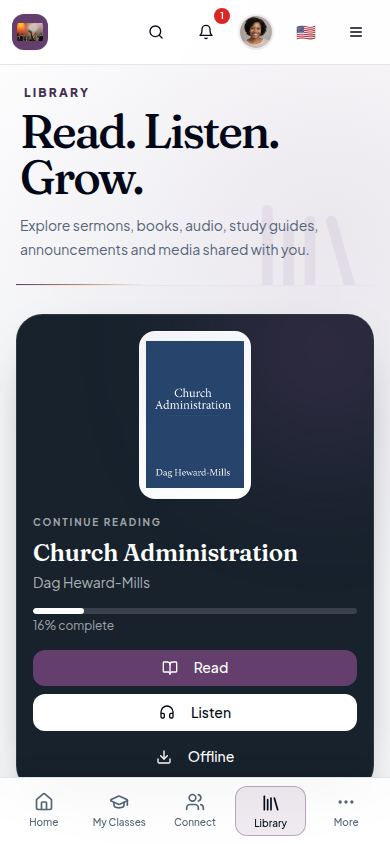
Private highlights, bookmarks, comments, tags, and notes
Open a written book in Library or a Bible edition in Bible, then select a passage. The action panel appears beside the reading area, so you do not need to scroll away from the text. You can copy or share the passage, apply a color highlight, bookmark it, add searchable tags, or save a private note or comment. Tap a saved highlight later to change its color, tags, or note, or to remove it.
These annotations belong to your member account and church. Other members cannot read them. If the book or Bible is downloaded, annotations continue to work offline and synchronize after the device reconnects.
What to do next
The next setup step is to invite your team so you're not the only person in the workspace.